
The critical difference between SharePoint and OneDrive is a matter of ownership and control: OneDrive is for an individual’s work-in-progress files (“Me”), while SharePoint is for shared team and company files (“We”). Understanding this distinction is not a technical detail; it is a fundamental business decision that impacts risk management, operational continuity, and data security.
For business leaders, OneDrive can be thought of as a secure digital desk drawer—a private space for an employee's drafts and personal work files. In contrast, SharePoint is the organization's central library. It is a shared, secure environment where all team and company data is owned and managed by the business itself, not by an individual employee. Using the wrong tool for team collaboration introduces significant risk, particularly when an employee departs.
Executive Summary: SharePoint vs. OneDrive for Business Leaders
The choice between SharePoint and OneDrive directly impacts data governance, security, and the long-term preservation of your company's intellectual property. A common and costly mistake is allowing teams to use OneDrive for collaborative projects. This practice creates a significant business risk.
When an employee leaves the company, any business-critical files stored in their personal OneDrive are tied to their individual account. This means the organization risks losing access to that data permanently. This is not merely an IT issue; it is a direct threat to business continuity and operational stability. A sound file management strategy leverages both tools for their intended purposes, creating a secure and efficient system where company data remains under company control.
Key Differences at a Glance
This table provides a high-level comparison of how these platforms serve core business functions, breaking down their primary purpose, data ownership, and ideal use cases.
| Attribute | OneDrive for Business | SharePoint |
|---|---|---|
| Primary Purpose | Personal file storage and document drafting ("Me"). | Centralized team and company collaboration ("We"). |
| Data Ownership | Owned by the individual user account. | Owned by the organization (the team or company). |
| Typical Use Cases | Storing drafts, personal work notes, ad-hoc sharing. | Project document libraries, company intranet, team sites. |
| Access Control | Primarily managed by the individual user. | Centrally managed with granular, role-based permissions. |
This simple decision tree helps clarify where a file should be stored based on its purpose and audience.
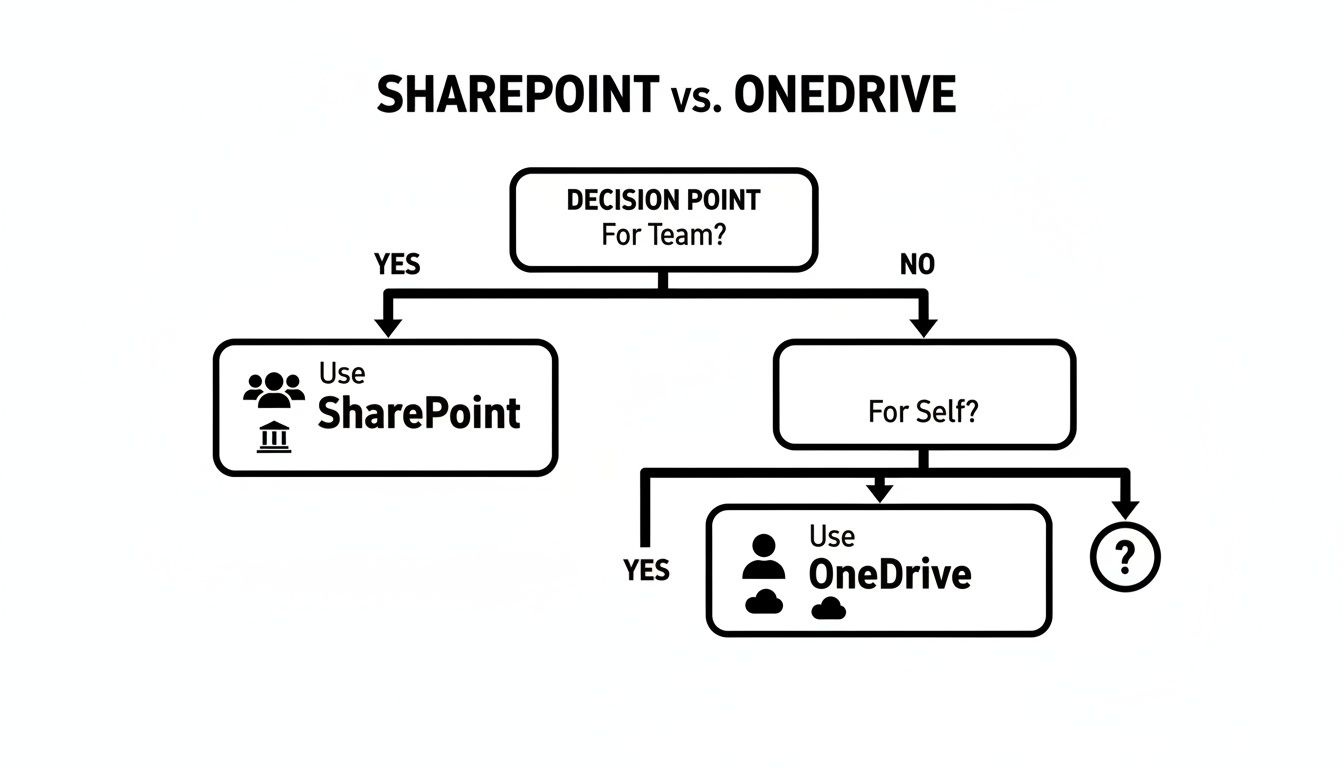
The key takeaway is that a file's audience should determine its location. If it is for an individual, OneDrive is appropriate. If it is for a team, it belongs in SharePoint.
Why This Matters for Your Business
Correctly applying the "Me vs. We" concept is the first step toward building an effective data governance framework. It ensures your valuable company information is always accessible, secure, and under corporate control, regardless of employee turnover.
- Risk Mitigation: Storing team files in SharePoint prevents critical data from being lost when employees depart.
- Enhanced Security: SharePoint provides centralized, granular control over permissions, reducing the risk of unauthorized access.
- Improved Efficiency: Teams work from a single source of truth, eliminating version-control issues and time wasted searching for the latest draft.
Guiding your team to use the right tool for the right job protects your organization's most valuable asset: its data. This is a critical component of any modern Microsoft 365 strategy.
Understanding the Core Purpose: 'Me' vs. 'We'
When comparing SharePoint and OneDrive, the most important distinction is ownership. This concept is the key to managing business risk, ensuring data continuity, and building a secure file management strategy.
It boils down to the "Me" versus "We" principle.
OneDrive for Business is based on a personal ownership model. Every file and folder is tied directly to an individual employee's account. It is a secure, personal workspace for drafts, private notes, or files not yet ready for team collaboration. The user has full control over sharing.
SharePoint operates on a collective ownership model. Files stored in SharePoint belong to a project, a department, or the entire organization—not to an individual. It serves as a central company resource where access is structured and managed by the business.
How Ownership Impacts Business Continuity
This distinction has significant implications, especially during employee turnover. If critical project files are stored only in an individual’s OneDrive, their departure can create a data crisis. Once their account is deactivated, those business-critical documents can become inaccessible, orphaned, or permanently lost.
This creates a serious business risk that can stall projects and result in the loss of valuable intellectual property.
A common mistake is using a patchwork of individual OneDrive folders for collaborative projects. This decentralizes company data and places long-term knowledge management in the hands of individual employees—a practice that threatens operational stability and data governance.
For regulated industries, this risk is magnified. In the Canadian legal sector, for example, compliance with regulations like PIPEDA is mandatory. SharePoint is the appropriate choice for managing sensitive client documents. Law firms using OneDrive for collaborative work face significant risks. When a lawyer leaves, files tied to their account become inaccessible—a scenario that affected 25% of small Canadian law practices, causing average data retrieval delays of 72 hours and potential fines. You can explore more insights on how Canadian firms navigate these challenges at MSsolutions.ca.
Structuring Data for the Long Term
The "We" model in SharePoint is designed for longevity and resilience. It ensures your firm’s data remains under company control, regardless of personnel changes.
- Centralized Control: Permissions are managed by administrators or site owners, not individual users, ensuring access rights align with company policy.
- Data Durability: When an employee leaves, data in SharePoint remains untouched and fully accessible to the team.
- Knowledge Management: SharePoint acts as a permanent, searchable archive of your organization’s work, preserving institutional knowledge.
By adopting this mindset, you can build a file management system that supports team collaboration while protecting your critical data. This proactive approach is a core part of an effective SharePoint strategy and implementation. The goal is not to eliminate OneDrive but to educate your team on its proper role as a personal workspace within a larger, company-owned SharePoint structure.
Collaboration and Document Management
The SharePoint vs. OneDrive debate is not about which tool is better, but which is appropriate for the task. Both platforms allow file sharing, but their core designs serve fundamentally different purposes. Using the wrong one can create operational inefficiency and risk.

Think of it as "Me" versus "We." OneDrive is effective for simple, ad-hoc sharing, such as sending a draft to a colleague for review or sharing a single file with an external partner. It is a personal storage tool with sharing features added on.
However, that simplicity becomes a liability for structured team projects. Relying on OneDrive for ongoing team collaboration—the "We" work—leads to duplicate files, version control problems, and operational confusion. Because each file is owned by an individual, the system's integrity depends on that person managing permissions and links correctly.
SharePoint for Structured Teamwork
This is where SharePoint excels. It provides a robust, structured environment for team-level document management. When integrated with Microsoft Teams, SharePoint document libraries become the single source of truth for project files, owned and controlled by the business, not an individual.
This centralized model eliminates the inefficiency of searching for the latest file version across different OneDrive accounts. The team always knows where to find the definitive document, which is critical for maintaining data integrity and project momentum.
Canadian small and midsize businesses are increasingly adopting SharePoint for team projects, with implementations growing by 55%. In contrast, organizations that use OneDrive for team collaboration experience 45% higher file duplication rates due to its personal ownership model. You can discover more insights about these business file trends and review the supporting data.
Feature Comparison for Business Operations
| Feature | OneDrive for Business | SharePoint |
|---|---|---|
| Primary Use Case | Personal storage, draft work, simple ad-hoc sharing ("Me" files). | Centralized team collaboration, project document management ("We" files). |
| File Ownership | Owned by the individual user. Access is lost if the user leaves. | Owned by the business/team site. Files remain with the team. |
| Permissions Model | Simple sharing links (view/edit) controlled by the file owner. | Granular permissions (read, contribute, edit, full control) at site, library, and file levels. |
| Metadata & Tagging | Not available. Organization relies solely on folder structure. | Robust metadata capabilities allow for custom tags, filtering, and powerful search. |
| Version History | Basic versioning is available but less visible and robust. | Mandatory, detailed version history with comments provides a full audit trail. |
| Process Automation | Limited. Can connect to Power Automate for personal workflows. | Deep integration with Power Automate for complex team-based approval workflows. |
| Integration | Integrates with Office apps for personal productivity. | Deeply integrated with Microsoft Teams, Power BI, and other M365 services for team productivity. |
As the table illustrates, SharePoint is engineered to support the complex, multi-layered needs of a team, while OneDrive is best suited for an individual's work-in-progress.
Advanced Document Control and Automation
SharePoint offers advanced controls that transform it from a simple file repository into a powerful workflow engine. These features improve productivity and risk management and are not available in OneDrive.
Key capabilities include:
- Real-Time Co-Authoring: Multiple users can work in the same document simultaneously, with all changes syncing instantly. This is essential for teams collaborating on complex reports or client agreements.
- Mandatory Version History: SharePoint automatically saves a new version each time a document is changed, creating a complete audit trail. You can easily restore previous versions, preventing accidental data loss and providing a clear record of changes.
- Metadata Tagging: Instead of relying only on folders, you can apply custom tags to files (e.g., "Client Name," "Project Phase," "Status"). This makes finding and organizing documents more efficient and powerful than folder structures alone.
One of the most powerful features of SharePoint is its integration with Power Automate. By creating automated document approval workflows, businesses can standardize processes, reduce manual effort, and minimize the risk of human error.
For example, a new contract can be automatically routed from a paralegal to a senior partner for review, then to the client for signature, with every step logged. This level of automation and control supports complex business operations far beyond simple file sharing. A well-designed cloud services strategy leverages these tools to streamline operations.
Security, Governance, and Compliance Analysis
For businesses in regulated industries, data security and compliance are foundational requirements. The differences between SharePoint's and OneDrive's security models are significant, and the choice directly impacts an organization's ability to manage risk, demonstrate compliance, and protect sensitive information.
OneDrive's security is user-managed. Each individual controls access to their files, typically through simple sharing links. While convenient for personal drafts, this creates a substantial business risk. A misconfigured share can expose confidential data, a common cause of costly data breaches.
SharePoint, in contrast, is designed for centralized, enterprise-grade security. This makes it the standard choice for any business-critical data that requires strict governance and auditable controls.
Granular Permissions and Access Control
SharePoint’s security is built for the "We" model—collective ownership that requires precise control over user actions. Administrators can set granular permissions at multiple levels, ensuring access is granted on a strict need-to-know basis.
This multi-layered approach includes:
- Site-level permissions: Grant or restrict access to an entire project site.
- Library-level permissions: Control access to a specific document library within a site, such as "Client Contracts."
- Folder-level permissions: Secure specific folders containing highly sensitive files.
- File-level permissions: Set unique permissions for a single confidential document.
This structure allows you to build a secure environment where access rights align with employee roles—a core requirement for most compliance frameworks. A sound IT governance strategy relies on these capabilities to enforce data handling policies consistently.
Advanced Compliance and Data Lifecycle Management
Beyond access control, SharePoint offers a powerful suite of features for meeting stringent regulatory requirements. These tools automate compliance and provide the auditable proof that regulators demand. They are not available in OneDrive.
Key compliance features include:
- Data Loss Prevention (DLP) Policies: Automatically identify, monitor, and protect sensitive information—such as financial data or personal identification numbers—from improper sharing.
- eDiscovery and Legal Holds: In the event of litigation, you can place a hold on all relevant documents, preserving them in place for legal discovery without disrupting daily work.
- Retention Labels: Manage the entire lifecycle of your documents by applying labels that automatically enforce retention and deletion policies.

The fundamental security risk with OneDrive is not the platform itself, but human error amplified by a decentralized model. SharePoint mitigates this risk by shifting control from individual users to a centralized, policy-driven system.
Cybersecurity data from Canada's regulated sectors highlights SharePoint's advantage. One analysis showed a 65% reduction in external sharing incidents for law firms after they standardized on SharePoint for team files. Further research revealed that while 95% of breaches originate from human error, SharePoint’s centralized visibility helped prevent 72% of these potential incidents. In contrast, OneDrive's user-level management left sensitive files exposed in 68% of reviewed cases.
Mitigating Risk from Unmanaged Sharing
The danger of user-managed sharing cannot be overstated. When employees use OneDrive for team collaboration, they create a shadow IT environment. The business has limited visibility or control over its own data, making it nearly impossible to enforce consistent security policies.
In addition to the native security of cloud platforms, a comprehensive data protection strategy requires robust network security. Adopting Managed Network Security Solutions adds another critical layer of defense. By standardizing on SharePoint for all "We" files, you centralize data governance and reduce the attack surface created by unmanaged sharing.
Practical Use Cases for SharePoint and OneDrive
Understanding the theory is one thing; applying it to real-world business scenarios is what matters. The right tool always depends on the task, with a focus on efficiency, risk management, and the long-term integrity of company data.
The following practical examples illustrate the distinct roles of each platform in daily operations and help guide teams toward smarter file management.

When to Use OneDrive for Business
OneDrive is an individual's digital workspace, ideal for the early stages of a document's lifecycle. It excels when a file is a work-in-progress or needs to be shared temporarily with a small number of people. It is a secure, private workspace for tasks not yet ready for the team.
Common scenarios for OneDrive include:
- Drafting a Proposal: An account manager writes the first draft of a client proposal in their personal OneDrive, allowing for iteration without cluttering the official project folder.
- Storing Personal Performance Notes: A manager keeps confidential notes for employee reviews in their OneDrive before moving them to the official HR system.
- Quick External Feedback: A user shares a link from OneDrive to a non-sensitive marketing graphic with a vendor for quick input without granting access to the entire project repository.
In each case, the work is temporary, personal, or involves simple, one-off sharing. The file is not yet an official company record requiring collective ownership or complex security.
When to Use SharePoint
SharePoint is for team files. It is the correct choice as soon as a document becomes an official business asset that needs to be accessed, edited, or referenced by multiple people over time. SharePoint provides the structure and security needed to manage "We" files.
Ideal situations for SharePoint include:
- Central Project Repository: A cross-departmental team launching a new service uses a SharePoint site as a single source of truth for plans, budgets, marketing materials, and client communications.
- Managing Company-Wide Policies: The HR department uses an intranet site built on SharePoint to publish and maintain the official employee handbook, ensuring everyone has access to the most current versions.
- Secure External Collaboration: A firm shares sensitive financial documents with an external auditor via a dedicated SharePoint site with strict permissions, providing secure access and a full audit trail.
The guiding principle is simple: if a file's value extends beyond one person or one task, it belongs in SharePoint. This ensures the organization retains control, visibility, and long-term access to its intellectual property.
Establishing clear guidelines based on these real-world examples empowers your team to make the right choice consistently. This clarity is a cornerstone of any well-managed cybersecurity services framework, as it reduces data sprawl and the risk of accidental exposure from improper file sharing.
Developing Your File Management Strategy
Implementing a structured file management system is more about process than technology. The objective is not to eliminate OneDrive but to clearly define its role within a secure, SharePoint-centric environment. A formal strategy is essential to protect your company's intellectual property, improve team efficiency, and manage business risk.
A well-defined strategy begins with clear, documented policies. Your team must know when to use OneDrive versus SharePoint. Without this guidance, users will default to the tool they know best, leading to critical data being scattered across personal storage accounts.
A Three-Step Implementation Framework
To build a resilient and compliant document management system, follow this straightforward, three-step approach. This framework helps you migrate existing data correctly and provides the training needed for long-term adoption.
- Define and Document Policies: Create a simple document outlining the "Me vs. We" principle. Be specific: OneDrive is for personal drafts, and SharePoint is for all shared business files. This policy becomes the single source of truth for governance.
- Plan and Execute Migration: Systematically migrate shared business documents from individual OneDrive accounts into structured SharePoint sites. Treat this as a formal project to ensure no data is lost and permissions are configured correctly from the start.
- Provide Ongoing Training and Reinforcement: Conduct training sessions to ensure every employee understands the new policies and the reasons behind them. Regular reinforcement helps build secure habits.
The greatest risk in file management is not a single event, but the gradual decentralization of company data into individual silos. A proactive strategy brings that data back under company ownership and control.
This structured approach strengthens your firm’s business continuity. A clear map of your data's location is a critical component of any effective disaster recovery plan. Our IT disaster recovery plan template can help you formalize how that critical data is protected and restored.
Common Questions Answered
Business leaders often have practical questions when deciding between SharePoint and OneDrive. Here are answers to common concerns about cost, migration, and integration.
Why Not Just Use OneDrive to Save Money?
While OneDrive is included in most Microsoft 365 plans, using it for shared team files creates hidden costs that outweigh any perceived savings. Relying on personal storage for company data leads to operational friction, version control issues, and a significant risk of data loss when an employee leaves. Furthermore, compliance violations from mismanaged files can result in steep fines and reputational damage. The true cost of a tool is its total impact on business risk and efficiency.
How Difficult Is It to Move Files from OneDrive to SharePoint?
Migrating a few files is simple, but a strategic migration requires careful planning to ensure the new system supports long-term business needs. Key steps include designing the right SharePoint site architecture, configuring detailed permissions to protect sensitive information, and managing the change with your team through clear communication and training. An experienced IT partner can provide the strategic planning needed to prevent future issues and ensure successful adoption.
Do SharePoint and Microsoft Teams Work Together?
Yes, they are designed to function as a single, powerful collaboration unit.
Every time a new Microsoft Team is created, a dedicated SharePoint site is automatically provisioned in the background. This site serves as the central library for every file shared within that Team's channels.
This integration provides the best of both worlds. Microsoft Teams serves as the conversational hub for real-time communication, while SharePoint provides the robust, secure, and structured document management engine. This combination ensures all team files are centrally located, properly governed, and owned by the business.
Understanding the distinction between SharePoint and OneDrive is essential for building a secure and efficient file management strategy. An experienced IT partner can provide expert guidance to help your organization configure these tools correctly, ensuring your data is protected and your teams can collaborate effectively. To build a resilient framework for your business-critical documents, explore our managed IT services.